Calendar View
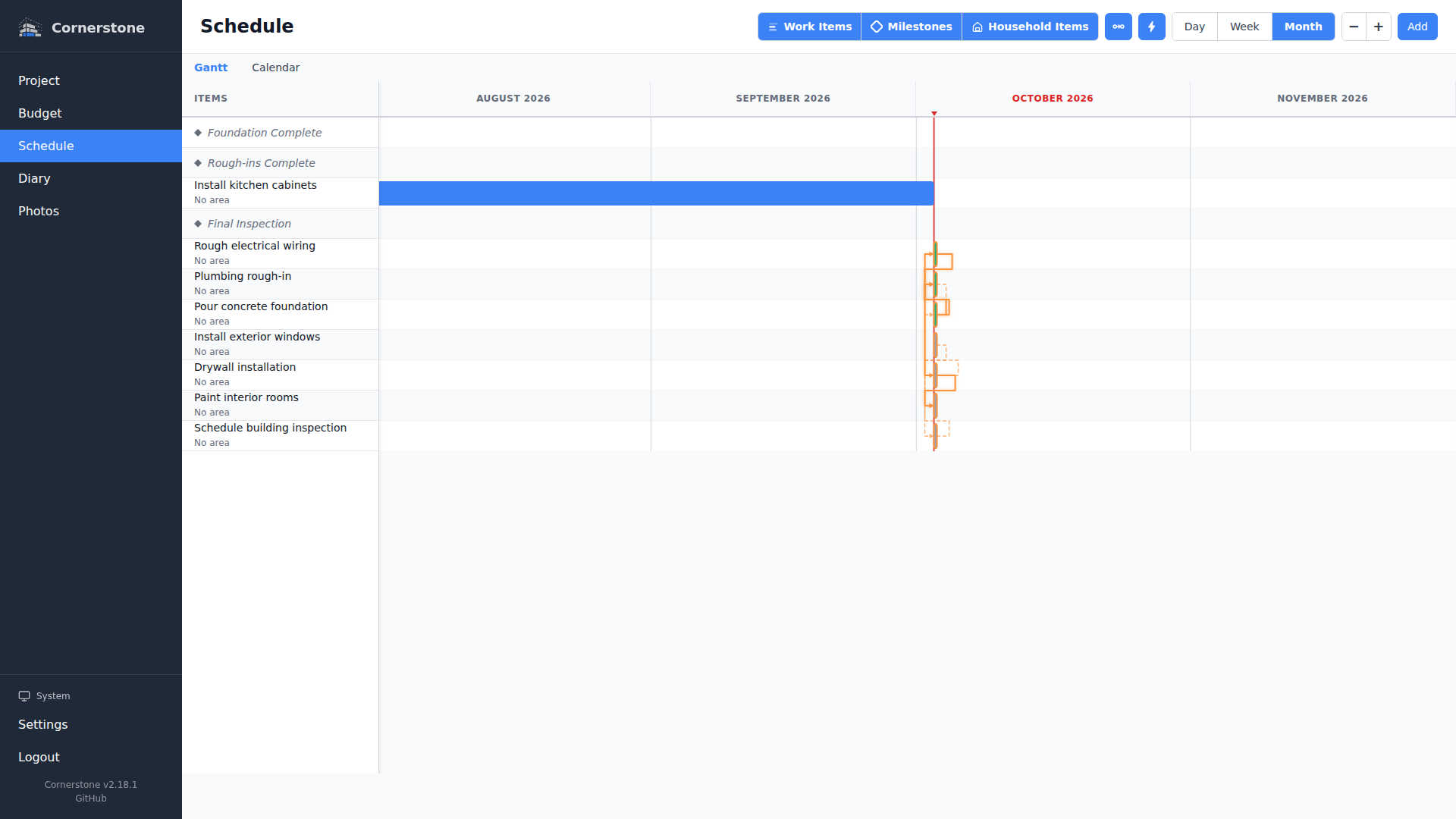
The calendar view provides an alternative way to see your project schedule as a familiar calendar grid. It shows work items as colored bars spanning their date range and milestones as diamond markers on their target dates.
Accessing the Calendar View
Navigate to Timeline from the main navigation, then click the Calendar button in the view toggle at the top-right of the toolbar.
The selected view (Gantt or Calendar) is persisted in the URL, so bookmarking or sharing the link preserves your view choice.
Monthly View
The monthly view displays a traditional calendar grid with seven columns (Monday through Sunday) and rows for each week of the month.
- Work items appear as colored horizontal bars that span across the days of their duration
- Multi-week items wrap across rows, appearing in each week they span
- Milestones appear as diamond markers on their target date
- Today is highlighted with a distinct background color
Navigation
- Use the left/right arrow buttons to move to the previous or next month
- Click Today to jump back to the current month
- The current month and year are displayed in the toolbar header
Weekly View
The weekly view shows a single week with taller rows, giving more vertical space for work items that overlap on the same days.
- Same visual treatment as the monthly view -- colored bars for work items, diamonds for milestones
- Use the left/right arrow buttons to move to the previous or next week
- Click Today to jump back to the current week
Switch between monthly and weekly views using the Month / Week toggle in the calendar toolbar.
Work Item Interactions
Tooltips
Hover over a work item bar to see a tooltip with:
- Title and status
- Start and end dates
- Duration (planned and actual)
- Assigned user
- Dependency information
Cross-Cell Highlighting
When you hover over a multi-day work item that spans multiple calendar cells, all cells belonging to that item are highlighted simultaneously, making it easy to see the full extent of a task.
Navigation to Detail
Click a work item bar to navigate to its detail page. On touch devices, the two-tap interaction applies -- first tap shows the tooltip, second tap navigates.
Milestone Interactions
Click a milestone diamond on the calendar to open the milestone panel with that milestone selected for editing.
Hover over a milestone diamond to see a tooltip showing:
- Title and target date
- Projected completion date
- Contributing and dependent work items
- Completion status
View Persistence
Both the view mode (Gantt vs Calendar) and the calendar sub-mode (Month vs Week) are stored in URL search parameters:
?view=calendar-- switches to the calendar view?view=calendar&calendarMode=week-- switches to the weekly calendar view
This means your view preferences are preserved when bookmarking, sharing links, or using browser back/forward navigation.