Financing Sources
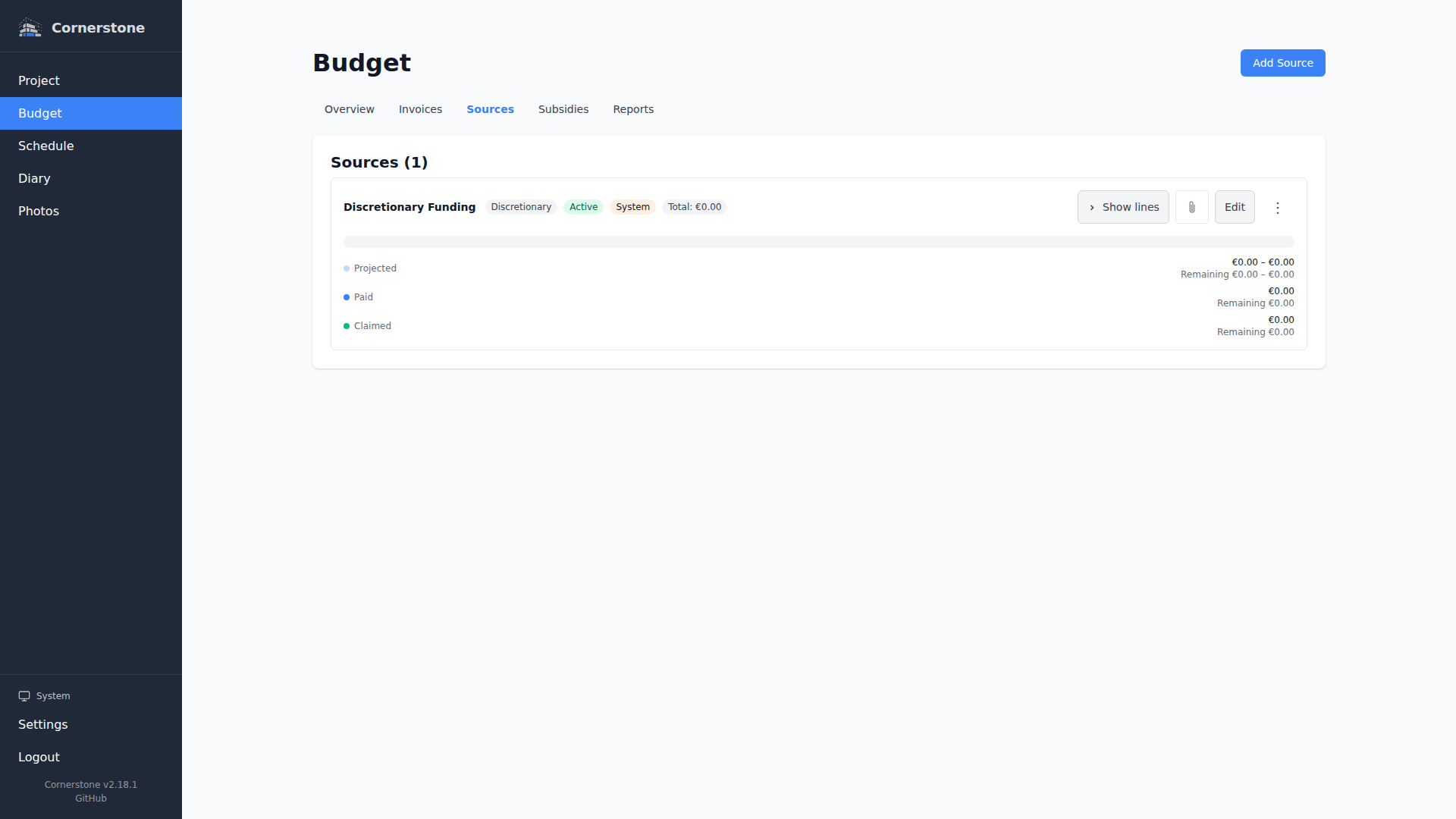
Financing sources represent where the money for your construction project comes from -- your construction loan, savings, a family loan, a subsidy. Each source has a total amount, and Cornerstone tracks how much of each source has been depleted based on actual invoice costs.
Examples
- Construction Loan -- $250,000
- Savings -- $50,000
- Family Loan -- $20,000
Creating a Financing Source
Navigate to Budget > Sources in the sidebar. Click New Source and provide:
- Name -- A descriptive label (e.g., "Construction Loan")
- Total Amount -- The total amount available from this source
Depletion Tracking
Each financing source shows how much has been spent. Depletion is calculated from the actual cost of invoices linked to budget lines that use this source:
- Invoiced amounts are summed to show how much of the source has been used
- A progress bar shows the percentage depleted
- The remaining balance updates automatically as invoices are added
Inline Budget Line Expansion
Click any source row on the sources page to expand it inline and see every budget line attached to that source directly beneath it -- no navigation away, no separate tab. The expanded panel is structured as a hierarchical area tree so you can see exactly which rooms, floors, and zones the source is funding:
- Budget lines are grouped first by their work item or household item, with the full area breadcrumb (e.g.
House / Ground Floor / Kitchen) shown next to the group header. - Work item groups are separated by horizontal dividers for easy scanning.
- Each budget line is a dense columnar row showing the category, planned amount, invoiced amount, and status.
- Clicking a work item or household item link jumps to that item's detail page, with the correct area ancestor resolved.
Multi-Select and Mass-Move
Need to reassign a batch of budget lines from one source to another -- for example, when a subsidy payout comes in and you want to move those lines off your construction loan? The sources page supports multi-select across groups:
- Expand one or more sources.
- Tick the checkboxes next to any number of budget lines -- your selection is preserved as you expand and collapse different areas or sources, so you can build up a batch across the tree.
- Click Move selected to open the mass-move modal.
- Pick the target financing source and confirm.
Every selected line is reassigned to the new source in a single operation, and the depletion totals on both the source you moved from and the source you moved to update immediately.
The mass-move modal is the fastest way to model a "what if" on your budget -- for example, splitting costs that were originally booked against your savings onto a newly approved loan, without editing each budget line individually.
Managing Sources
From the sources page you can:
- Edit a source's name or total amount
- Delete a source that is no longer needed
Deleting a financing source will fail if any budget lines reference it. Use mass-move to reassign those lines first, then delete.