Milestones
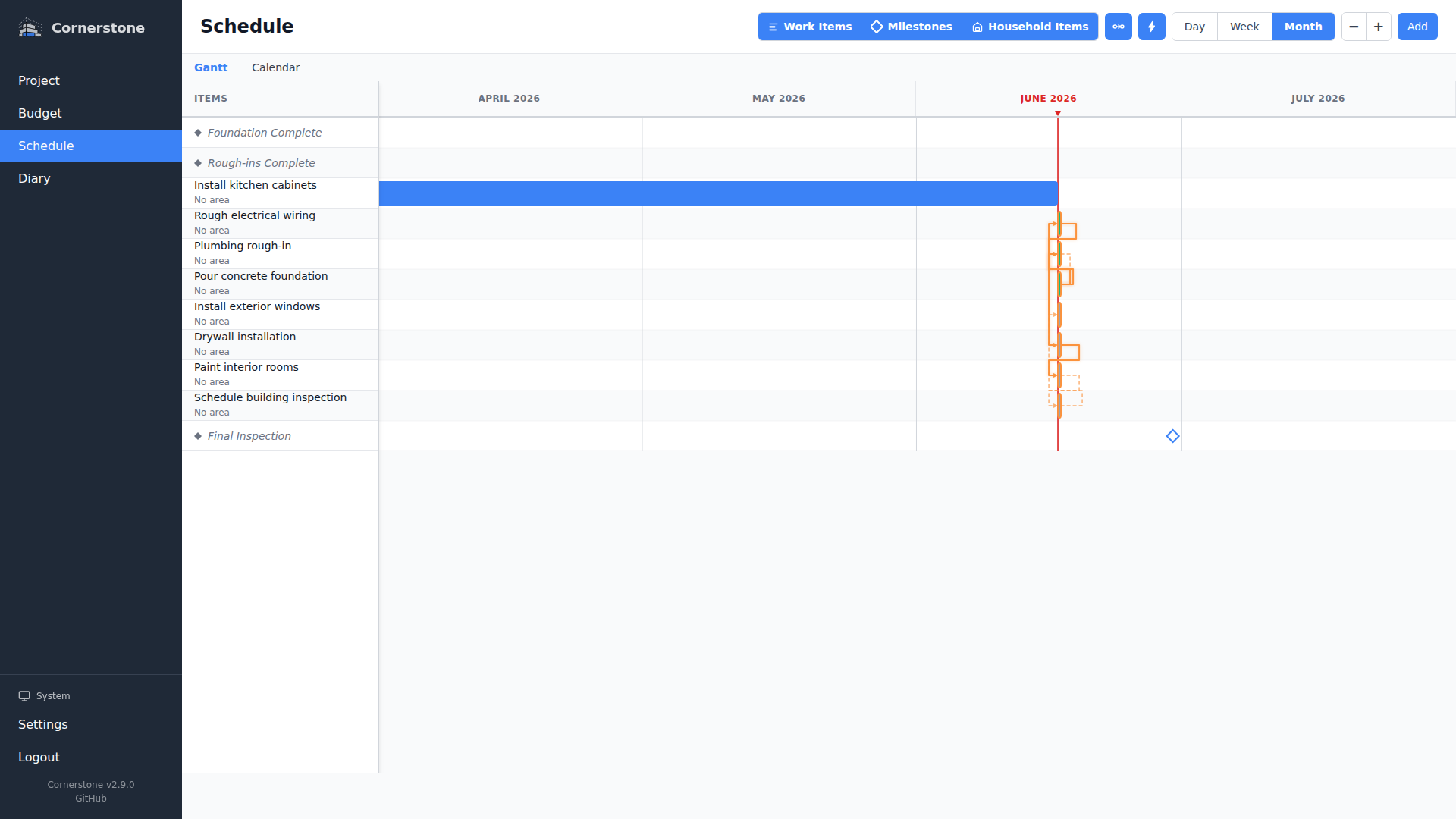
Milestones represent major checkpoints in your construction project -- moments like "Foundation complete", "Roof installed", or "Final inspection". They help you track whether your project is on schedule at a glance.
Creating a Milestone
- Open the Timeline page
- Click the Milestones button in the toolbar (diamond icon)
- In the milestone panel, click + New Milestone
- Enter a title and target date
- Click Save
The milestone will appear as a diamond marker on both the Gantt chart and calendar view at its target date.
Editing a Milestone
From the milestone panel (click the Milestones button in the toolbar):
- Find the milestone in the list
- Click the edit icon (pencil) next to it
- Update the title or target date
- Click Save
You can also click a milestone diamond directly on the Gantt chart or calendar to open the panel with that milestone selected for editing.
Deleting a Milestone
- Open the milestone panel
- Click the delete icon (trash) next to the milestone, or open the edit view and click Delete Milestone at the bottom
- Confirm the deletion in the dialog
Deleting a milestone removes all its work item links. This action cannot be undone.
Linking Work Items
Milestones support two types of work item relationships:
Contributing Work Items
Contributing work items are tasks that must be completed for the milestone to be achieved. The milestone's projected completion date is calculated as the latest end date among all its contributing work items.
To link a contributing work item:
- Open the milestone panel and select a milestone for editing
- In the Contributing Work Items section, search for and select a work item
- The work item is now linked to the milestone
Dependent Work Items
Dependent work items are tasks that cannot start until the milestone is reached. This is useful for gating downstream work on a milestone being achieved.
To link a dependent work item:
- Open the milestone panel and select a milestone for editing
- In the Dependent Work Items section, search for and select a work item
- The work item is now linked as dependent on the milestone
To unlink a work item of either type, click the remove button next to it in the milestone edit view.
Late Milestone Detection
A milestone is considered late when its projected completion date (based on the end dates of contributing work items) exceeds its target date. Late milestones are highlighted with a warning color on both the Gantt chart and in the milestone panel.
The milestone panel shows both the target date and the projected date for each milestone, making it easy to identify schedule slippage.
Milestone States
| State | Visual | Meaning |
|---|---|---|
| Incomplete (on track) | Blue diamond outline | Projected date is on or before target date |
| Late | Red/warning diamond | Projected date exceeds target date |
| Completed | Green filled diamond | All contributing work items are completed |
Milestone Panel
The milestone panel is a slide-over dialog accessible from the toolbar. It provides:
- List view -- All milestones sorted by target date, with status indicators, target dates, projected dates, and work item counts
- Create view -- Form to create a new milestone
- Edit view -- Form to update the milestone, plus work item linking sections
Use Escape to close the panel or navigate back from a sub-view.